
How I Freed Up RAM and CPU Resources Instantly with Smart Game Booster
The Problem: A Rig That Should Have Been Fast Enough
I’ve been PC gaming for over a decade, and I’ve built or upgraded three rigs in that time. So when my system a perfectly respectable machine with 32GB of RAM started stuttering mid-match in Call of Duty: Black Ops 7, I knew the hardware wasn’t the bottleneck. Background processes, fragmented memory, and outdated drivers were quietly eating into resources I needed for smooth frame delivery. I’d read about game-optimization tools before and dismissed most of them as bloatware, but this time I decided to actually test one properly, log the before-and-after numbers, and see whether the claims held up.
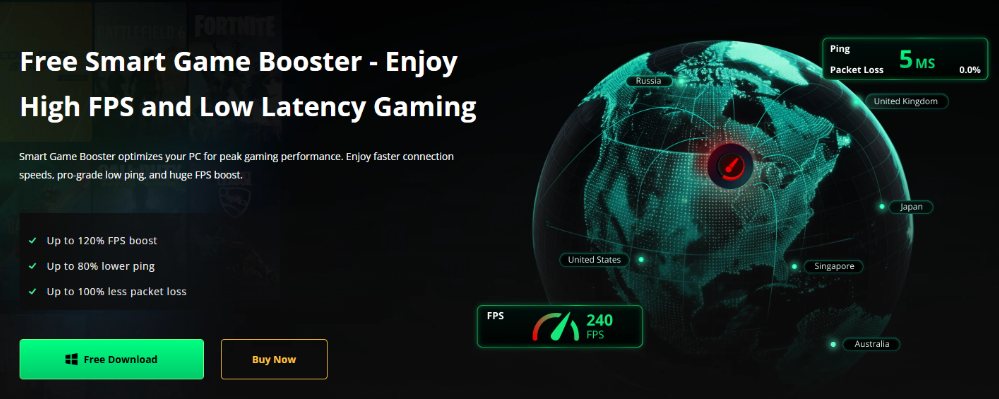
I settled on Smart Game Booster, a lightweight utility built specifically to reclaim RAM and CPU headroom while a game is running, rather than a generic ‘PC cleaner’ that just deletes temp files and calls it a day.
Setting Up: Adding My Game Library in Minutes
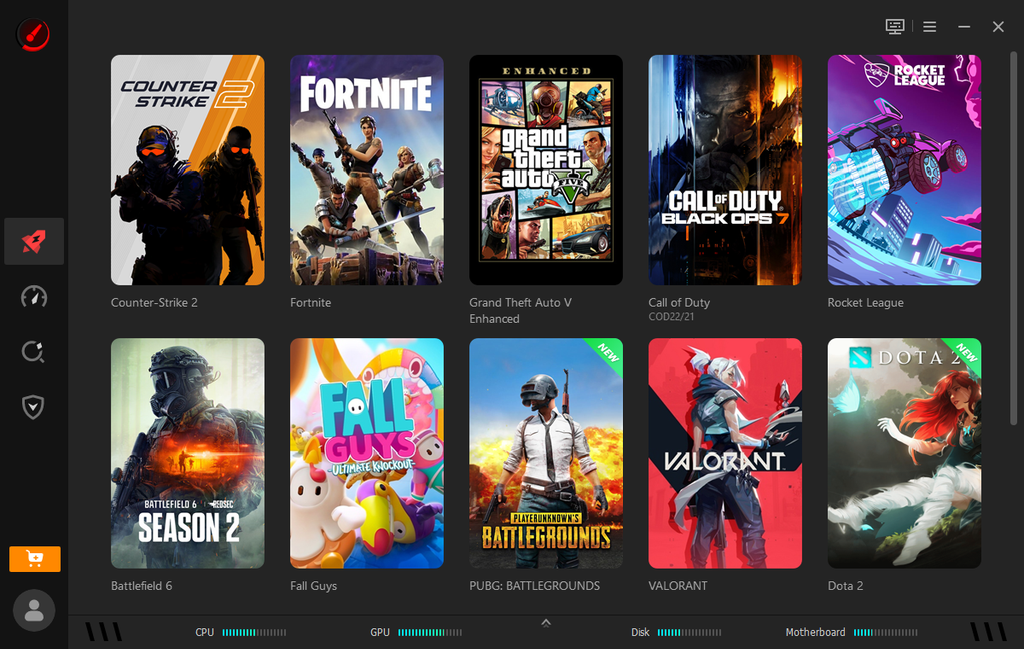
The main dashboard auto-detected most popular games includes Counter-Strike 2, Fortnite, GTA V, Call of Duty, Rocket League, Battlefield 6, Fall Guys, and Valorant were already listed as tiles the moment I opened the app. For anything it missed, the “Add Local Game” option let me point directly to an executable and, optionally, pass launch parameters. This took me under a minute per title.
Running PC Boost on Call of Duty: Black Ops 7
With Call of Duty selected, I opened its dedicated boost panel. Two toggles are available here: Network Acceleration (which routes traffic through optimized servers — this is essentially the same engine behind the FPS Booster feature) and PC Boost, which is what I was after for this test. I switched PC Boost on and hit “Accelerate Now.”
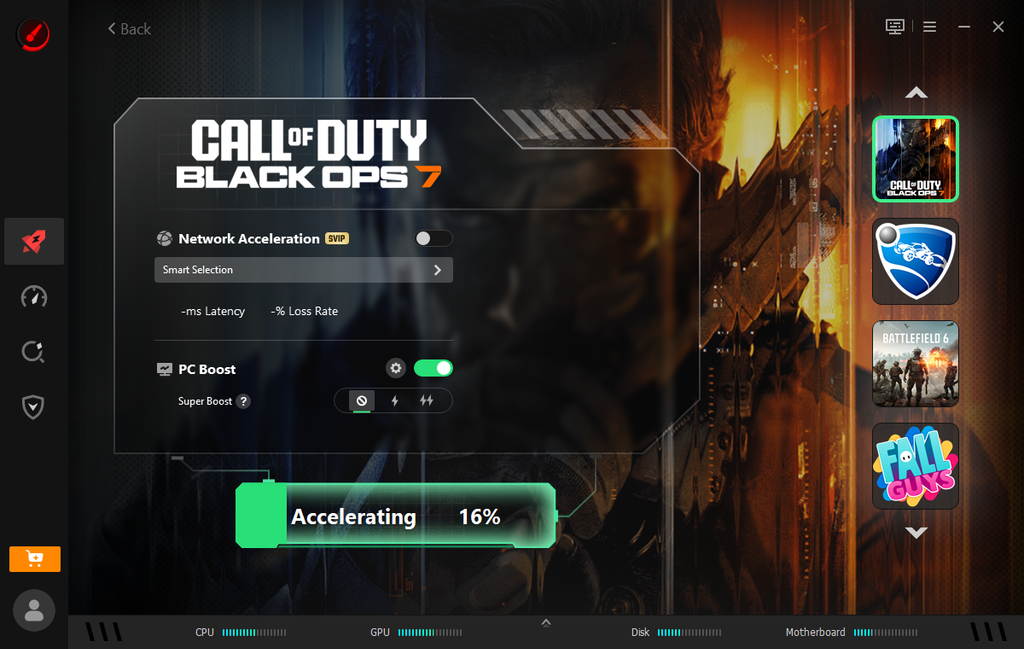
The app immediately began closing unnecessary background services and reallocating memory. A progress bar tracked the process in real time, which I appreciated too many ‘optimizer’ tools just show a spinner and ask you to trust them.
The Result: Numbers, Not Just a Feeling
Once the process finished, the results screen gave me a concrete performance summary instead of a vague ‘optimized!’ message. My overall performance was up 25%, CPU load was reduced by 3%, and the tool had released 2130 MB of RAM that background processes had been quietly holding onto. It also confirmed my graphics drivers were current, so there was nothing further to update on that front. From here I could launch the game directly or restore my system to its default state with one click.
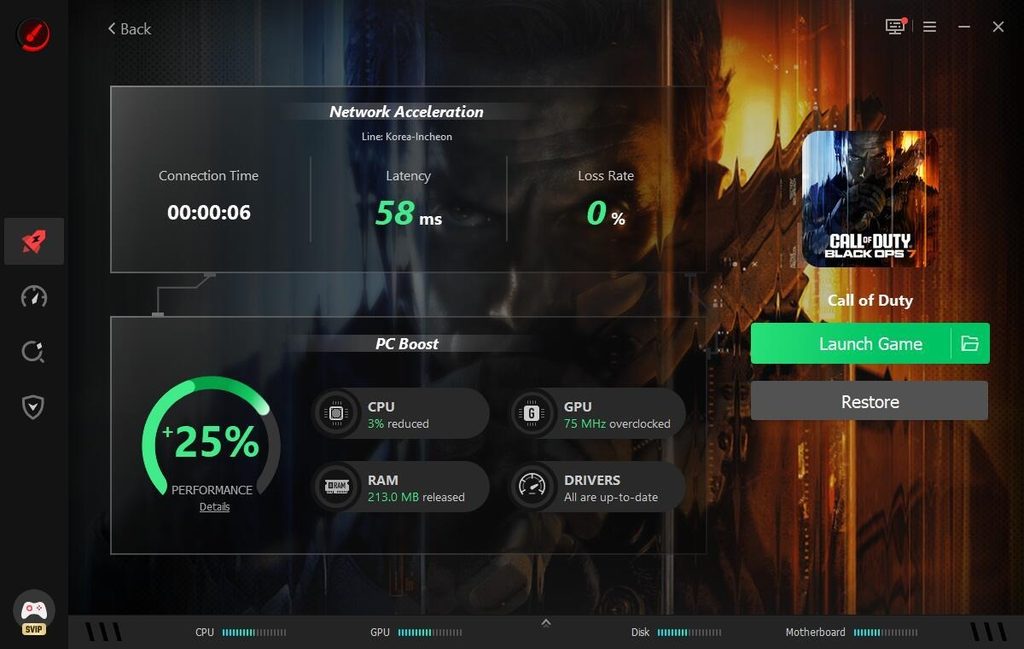
That RAM figure mattered most to me. Task Manager had shown dozens of small processes nibbling away at memory in the background updater services, overlay apps, leftover helper processes from software I’d long forgotten installing. Smart Game Booster identified and suspended the non-essential ones automatically, without me having to hunt through a process list myself.
Going Deeper: A Full System Scan
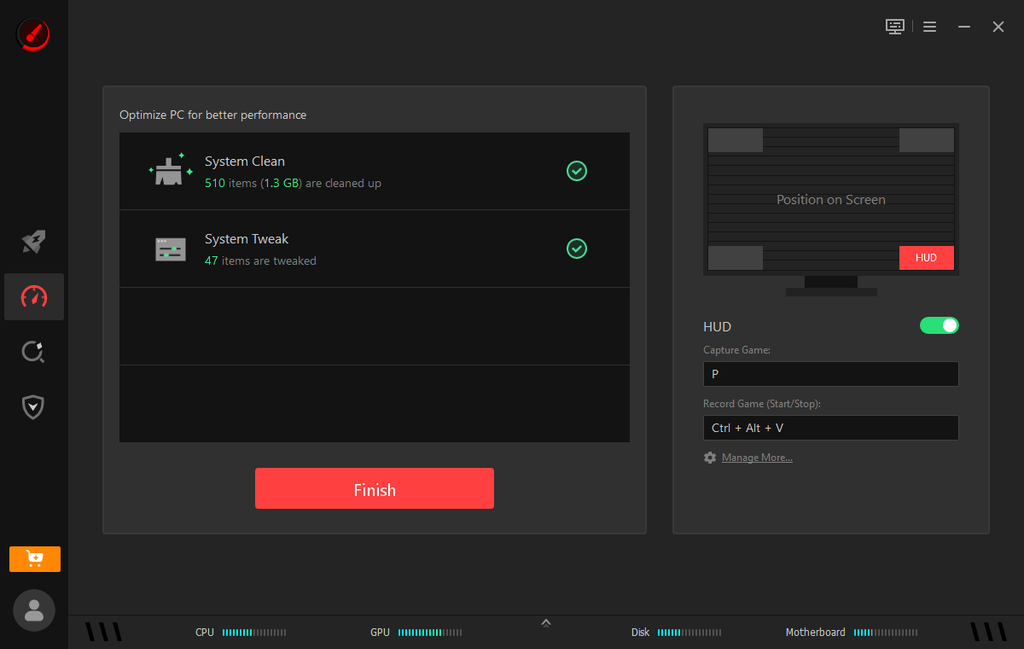
Curious how much further I could push things, I ran the broader “Performance” scan, which checks System Clean, System Tweak, Driver Update, and Game Defrag together. The scan flagged 1,108 items (1.4GB) that could be cleaned and 47 system settings that could be tweaked for faster response and startup times.
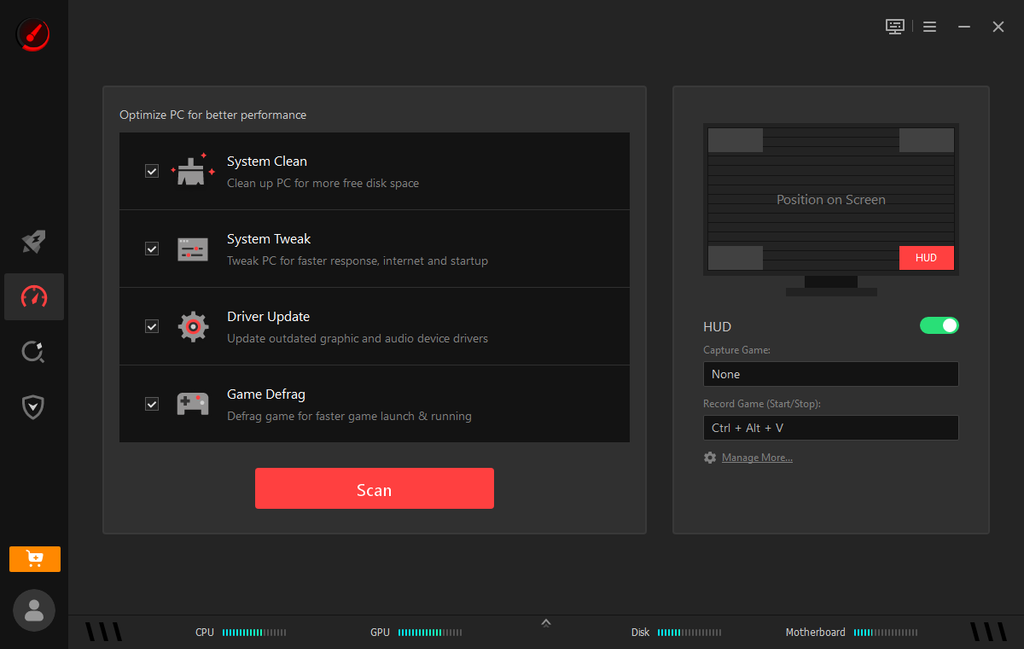
I let it apply the fixes it found safe to apply, and within a couple of minutes the tool confirmed the cleanup and tweaks were complete, freeing an additional 1.3GB of disk space and applying 47 optimizations to my startup and network settings.
Why This Matters for Everyday Players
What convinced me this wasn’t just marketing was the transparency of the process every step showed exactly what was being changed and by how much, and nothing was applied without a visible summary afterward. As someone who has tried a handful of ‘boost’ utilities that quietly install extra software or overstate their impact, that level of detail is what earns trust.
If you’re chasing higher frame rates specifically, it’s worth pairing PC Boost with the FPS Booster side of the same suite, which focuses on network latency and packet loss rather than local resource usage the two work well together for anyone playing competitive, ping-sensitive titles.
My Takeaway
After running Smart Game Booster across several sessions over two weeks, the RAM and CPU gains were consistent, not a one-time fluke tied to a fresh reboot. For anyone whose gaming PC has quietly picked up bloat over months of use, it’s a fast, measurable way to claw back the resources your games are actually meant to have.