Clean PC Junk: How to Completely Wipe Leftover Files After Software Uninstall
Standard Windows uninstallation rarely tells the whole story. While the core application disappears from your desktop, its digital footprint—temporary folders, cached data, stray registry keys, and config files—frequently remains buried in your system drive. Over time, this digital debris quietly erodes your available disk space and clutters system resources. IObit Uninstaller solves this persistent issue by targeting and eliminating these hidden remnants. Designed for both casual users and system administrators, it strips away stubborn applications and their background traces without requiring complex command-line tweaks or manual registry edits.
Below is an in-depth look at why clearing installation remnants matters, how IObit Uninstaller operates, and how to use it effectively.
Part 1: Why Clearing Leftover Installation Remnants Matters
Executing a default uninstall process via the Control Panel often leaves half the job unfinished. Regularly purging lingering application data delivers several practical system benefits:
- Reclaim Wasted Disk Space: Residual installer caches and temporary logs often take up hundreds of megabytes—or even gigabytes—of storage over time.
- Streamline the Windows Registry: Orphaned software keys slow down system scans and can occasionally lead to software conflict errors when installing updated applications.
- Prevent Performance Degradation: Old background updates, hidden telemetry services, and obsolete application caches can trigger unnecessary background disk reads, dragging down overall responsiveness.
- Keep Your Drive Organized: Eliminating dead directories keeps your AppData and Program Files paths structured and easy to manage.
Part 2: What is IObit Uninstaller?

IObit Uninstaller is a dedicated Windows utility designed to go beyond built-in OS removal protocols. While the native Windows Add/Remove Programs utility simply executes an app’s default uninstaller, IObit applies an aggressive secondary engine. It thoroughly scans system directories and registry hives for any orphaned traces connected to the targeted app. Beyond routine programs, the software also isolates stubborn software, browser toolbars, bloatware, and malicious extensions that resist conventional deletion.
Part 3: Core Features & Capabilities
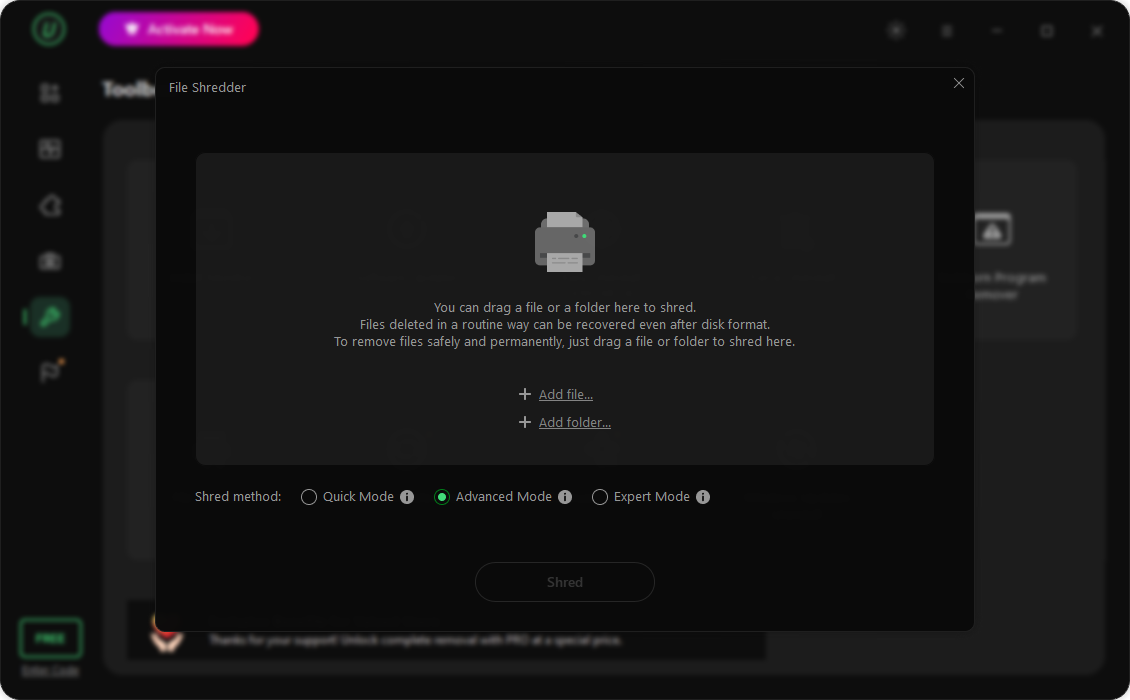
IObit Uninstaller is the most popular uninstaller for Windows available in 2026. It provides a range of features designed to make removing unwanted applications and their remaining files easier. Here are the top features of this program:
- Forced & Stubborn Program Removal: Easily bypasses corrupted uninstall files or restricted permissions to strip away persistent bloatware (supporting over 4,000+ resistant applications).
- Automated Residual Deep Scan: Automatically initiates a post-uninstall scan to identify and destroy hidden configuration files, empty directories, and leftover registry hives.
- Multi-App Batch Uninstall: Saves time by allowing users to queue multiple applications and wipe them sequentially in a single operation.
- Feature-Packed Free Edition: The non-paid version provides essential core utilities, including batch removal, basic installation monitoring, and health scans for outdated software components.
- Streamlined UI: Built with a clean navigation flow—users can locate, inspect, and remove software with a couple of clicks without navigating complex technical menus.
Part 4: Step-by-Step Guide: Purging Leftover Files with IObit Uninstaller
Removing leftover files with IObit Uninstaller is simple. Here are step-by-step instructions on how to do it:
- Download & Launch: Download the latest release from the official IObit website. Install and open the utility, then select All Programs from the left-hand navigation menu.
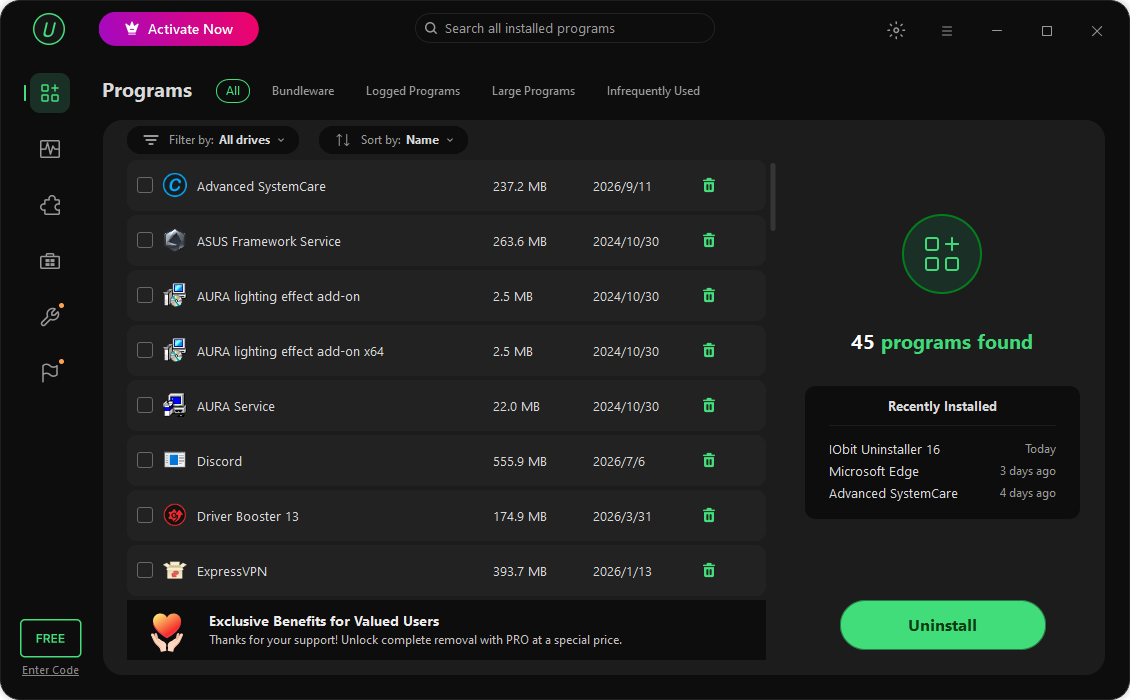
- Select Target Applications: Browse your installed software list. Check the box next to the app(s) you wish to remove. You can select multiple items if you want to perform a batch cleanup.
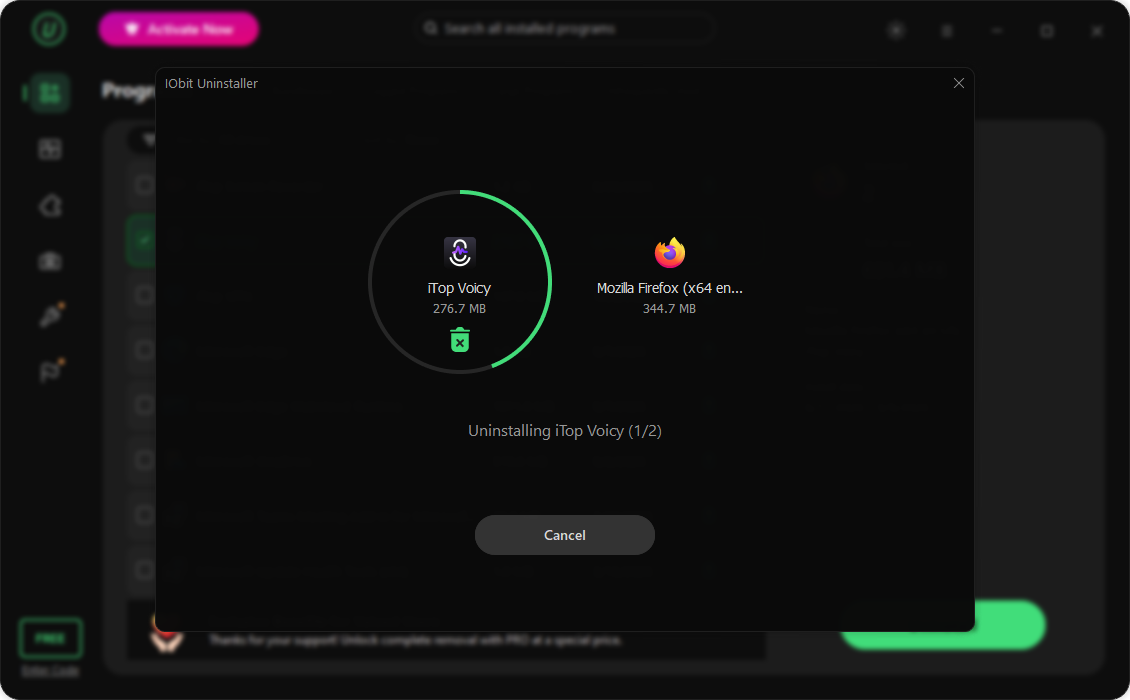
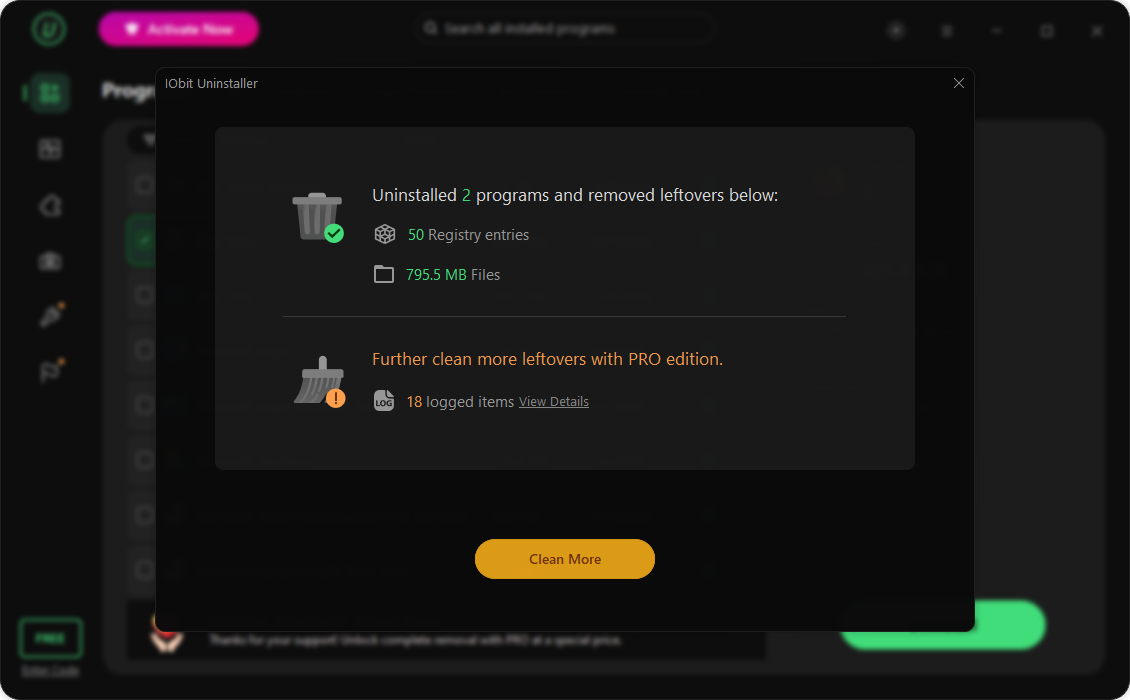
- Within seconds, IObit Uninstaller will completely remove the program from your device, along with its leftover files, registry entries, and more.
Final Thoughts
A routine software uninstall rarely leaves your storage completely clean. Leftover caches and abandoned registry entries accumulate steadily, quietly degrading PC storage and system efficiency. Utilizing a dedicated utility like IObit Uninstaller ensures that when you decide to delete a program, every single trace goes with it—keeping your Windows system lightweight, clean, and responsive.