SSD Data Recovery Explained: How TRIM Affects Deleted Files and Recovery Chances
Introduction: SSD Data Recovery Is Different From HDD Recovery
When you’ve recovered a deleted file from an HDD hours or even days later, you might expect an SSD to function the same way. It doesn’t. On an HDD, deleted files are typically just marked as free space, leaving the original data intact until new data overwrites it.
But on an SSD, TRIM can tell the drive that deleted data is no longer needed. This allows its controller to clear those flash blocks during garbage collection, sometimes before recovery software even gets a chance to scan them.
That changes how SSD data recovery functions. This article explains how TRIM affects deleted and formatted files, what determines the chances of recovery, and what to do immediately after data loss.
Key Takeaways
- TRIM can erase deleted SSD data far faster than on HDDs, making recovery time-sensitive.
- Stop using the SSD immediately to reduce the risk of further data loss.
- Check cloud backups, Windows Backup, or File History before using recovery software.
- A dedicated SSD data recovery tool can scan deleted, formatted, or lost data and preview what remains recoverable.
- Regular backups are the best protection against permanent SSD data loss.
What Is TRIM and Why Does It Affect SSD Data Recovery?
The TRIM command is the main reason SSD recovery differs from HDD recovery. The sections beneath explain how it functions and which factors determine whether deleted data is still recoverable:
How TRIM Works on SSDs
TRIM is an ATA command that the operating system sends to an SSD’s controller when a file is deleted. It exists because flash memory functions differently from an HDD. An SSD can’t simply overwrite a used cell. Flash cells must be erased in large blocks before they can be written again, and erasing is slow and wears the drive.
Without TRIM, the controller wouldn’t know which cells hold real data and which are safe to erase. TRIM solves this by telling the controller which blocks are no longer in use. The controller can then clear those blocks during normal garbage collection, keeping the SSD fast as it fills up. The downside of TRIM is that deleted data can be wiped out by the drive itself, without any new file ever being saved.
Why TRIM Makes SSD Recovery More Difficult
SSD data recovery software fundamentally functions by scanning a drive for data the file system no longer points to, but that’s still physically present. On an SSD with TRIM enabled, the controller can erase those flash blocks through garbage collection within seconds to minutes, often before recovery software can scan them. Whether a deleted file is still recoverable depends on several variables:
- Whether TRIM was active: Internal SATA and NVMe SSDs typically have TRIM enabled by default. External SSDs over USB are less consistent because support depends on the enclosure’s USB-to-SATA/NVMe bridge and whether the OS recognizes the drive as TRIM-capable.
- How much time has passed: Garbage collection doesn’t always run immediately; it depends on the controller and how idle the drive has been. That’s why SSD recovery windows are often measured in minutes or hours rather than days.
- Whether new data has been written: Even if TRIM hasn’t erased the blocks yet, normal use can cause the controller to reuse that physical space. This includes installing an update, saving a document, or background app activity.
- The SSD model and controller firmware: Different controllers handle garbage collection differently, and some consumer SSDs are more aggressive than others.
Common SSD Data Loss Scenarios
SSD data loss can happen in more ways than simply deleting a file. Here are the most popular scenarios:
Accidentally Deleted Files From SSD
Whether it’s photos, client documents, or video project files, accidental deletion remains a frequent cause of data loss. On an SSD, recovery often depends on how quickly you act, not days later, but within the next few minutes of drive activity.
Formatted SSD or Lost Partition
Formatting removes the file system’s index and may also trigger TRIM across the affected area. If the format was accidental, such as selecting the wrong drive during a Windows reinstall, recovery may still be possible. This depends on whether TRIM hasn’t fully completed or wasn’t sent across the entire drive.
SSD Not Showing Up or Becoming Inaccessible
An SSD can become inaccessible without any files being deleted. Frequent causes include:
- File system corruption after an improper shutdown
- Partition table errors
- Loose or faulty cables or enclosures
- Drive or controller failure
These cases are more like traditional data loss. The files may still exist, but the drive is no longer presenting them correctly.
How to Improve Your Chances of SSD Data Recovery
When files disappear from an SSD, here’s what to do first, where to check for backups, and when recovery software is the best option:
Stop Using the SSD Immediately
The most important step after realizing files are missing is to stop writing to the SSD drive. Don’t save files, install anything, or restart into it unnecessarily if it’s your system drive, since Windows constantly writes data in the background. Every write risks overwriting the blocks you’re trying to recover, and on an SSD, that window closes faster than on an HDD.
Check Backup Options First
Before running a recovery tool, check whether the files exist elsewhere. Look at OneDrive, Google Drive, iCloud, or your cloud sync, and check Windows Backup or File History if configured. Restoring from a backup is faster, free, and carries no risk to the drive.
Use Reliable SSD Data Recovery Software
When there’s no backup, dedicated SSD data recovery software is the next step. It can scan the SSD at a low level for deleted files, lost partitions, and file remnants that survived garbage collection. But no software can recover data that TRIM has already erased. Recovery tools can only restore what hasn’t been cleared yet, which, if you act quickly, may be more than expected.
Recover Lost Files with 4DDiG Data Recovery Software
4DDiG Data Recovery is designed to retrieve corrupted or lost data and recover files from formatted SSDs. It also supports data-loss scenarios, like crashed systems, unbootable drives, and lost partitions across internal and external SSDs, HDDs, USB drives, SD cards, and other storage media. A few things make it a practical option when you’re racing against TRIM’s garbage collection window:
- Broad storage support: It’s compatible with SSDs, HDDs, USB flash drives, SD cards, and NAS devices.
- Broad format support: It supports more than 2,000 popular file types, including documents, photos, videos, audio, email, etc.
- Deep scan for harder cases: Alongside a quick scan, 4DDiG Data Recovery offers a deeper, sector-level scan for file fragments and lost-partition data, making it useful for formatted or RAW SSDs.
- Preview before recovery: You can preview found files before restoring them to confirm the scan found what you need.
- Free scan: Up to 2GB for Windows and 500MB for Mac users lets you see what’s recoverable before paying, which is useful on SSDs where you first want to know if anything remains.
- Read-only scanning: The scan doesn’t write to the source drive, reducing the risk of the recovery process overwriting remaining data.
Step-By-Step Guide to Use 4DDiG Data Recovery:
Here’s how to recover data from SSD with 4DDiG Data Recovery:
Step 1: Download 4DDiG Data Recovery
Stop using the affected SSD as soon as you notice the data loss. Download and install 4DDiG Data Recovery on a different drive than the one you’re recovering from to avoid writing to it.
Step 2: Pick the SSD Drive:
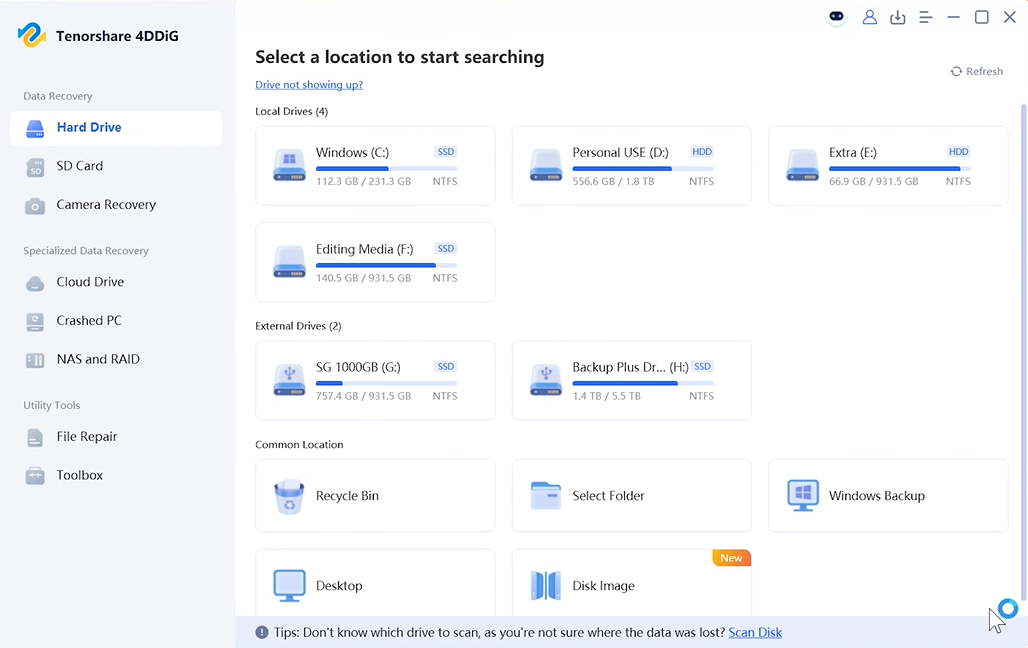
Execute 4DDiG Data Recovery. Select the SSD in question and start a scan (quick scan first, deep scan if the quick scan doesn’t turn up what you need). You can pick the file types to scan.
Step 3: Preview and Restore Files:
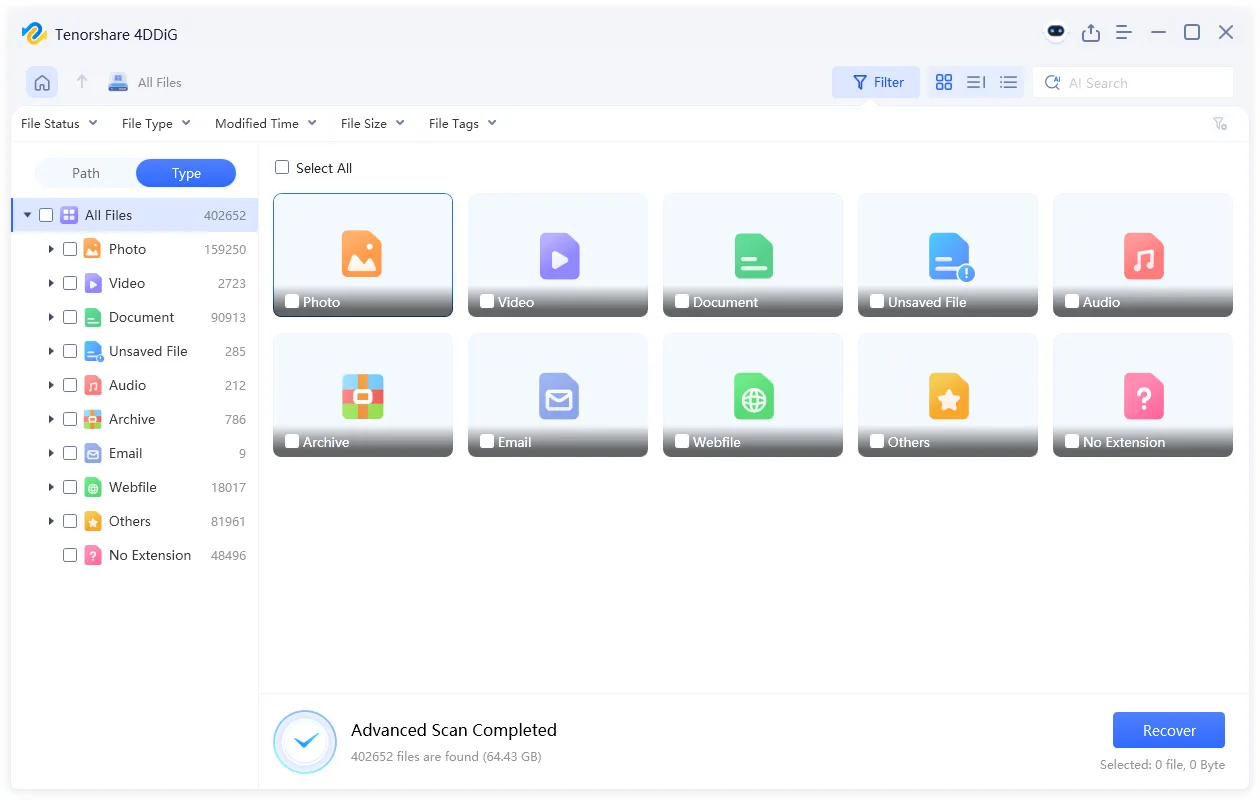
Preview the recoverable files. Filter the results with tags and keywords. Then, restore the files you need to a separate drive, never back to the SSD you just scanned.
Note: If TRIM has already run and the controller’s garbage collection has cleared the relevant blocks, no recovery tool, 4DDiG Data Recovery included, can bring that data back. The tool’s job is to catch what’s still there before that happens, which is exactly why speed matters more on an SSD than it does on an HDD.
How to Prevent SSD Data Loss in the Future
There’s no guarantee that you won’t lose your SSD data again in the future. But you can reduce the chances of loss. Here are some tips to protect important files, reduce reliance on a single SSD, and catch drive health issues early:
- Keep regular backups: A second copy is the only guaranteed protection against TRIM. Use cloud backup or automatic external drive backups so it happens without you having to remember.
- Avoid single-copy storage: Don’t keep the only copy of critical files on a single SSD, especially a portable drive.
- Check SSD health: Periodically check your SSD using tools like CrystalDiskInfo or the manufacturer’s utility. SSDs wear out, and a failing drive can make recovery even harder.
FAQs
- Can you recover deleted files from an SSD?
It depends on timing. If TRIM hasn’t yet cleared the blocks that held the deleted data, recovery software can often find and restore the files. Once TRIM and garbage collection have run, the data is typically gone for good.
- How does TRIM affect SSD data recovery?
TRIM tells the SSD controller which deleted blocks it can erase during garbage collection. It keeps the drive fast while also removing the leftover data that recovery tools rely on, often within minutes of deletion rather than days.
- Is SSD data recovery possible after formatting?
Sometimes. If the format didn’t trigger a full TRIM pass, or if you catch it quickly, recovery software may still be able to pull back some or all of the data.
- What is the best SSD data recovery software?
Look for a tool that supports your SSD’s file system, offers a deep scan mode for formatted or RAW drives, and lets you preview files before recovering. 4DDiG Data Recovery covers all three, along with a free scan to check what’s recoverable before you commit to anything.
- Should I keep using my SSD after deleting important files?
No. Continued use risks new writes landing on the same blocks you’re trying to recover, and it gives the controller more opportunities to run garbage collection on those blocks.
- Can professional recovery services recover SSD data after TRIM?
In most cases, no. Once the controller has erased the flash blocks, the data is physically gone, not just logically hidden, so even lab-level recovery services can’t reconstruct it.
- Does 4DDiG recover SSD files with TRIM enabled?
4DDiG Data Recovery can recover files as long as the underlying data hasn’t been erased yet by TRIM/garbage collection. It can’t restore data from blocks that have already been cleared. No software can.
- How can I avoid SSD data loss?
Keep regular backups in at least one other location. Double-check drive/partition selections before formatting, and avoid relying on a single SSD as the only copy of anything important.
Conclusion
SSD data recovery is a race against TRIM. The sooner you stop using the drive, check backups, and scan for remaining data, the better your chances of recovery. If there’s no backup, 4DDiG Data Recovery is a practical option for scanning deleted, formatted, or lost data and previewing what can still be recovered. Just remember: once TRIM and garbage collection have cleared the blocks, no recovery software can recover that data.