Top 6 Image to Anime Converters for Photos and Profile Pictures
Getting an anime avatar that still looks like you can be surprisingly tricky. Sometimes you want to browse a menu of ready-made styles. Other times you’d rather explain the exact look in your own words. A good image to anime converter can handle one route or both.
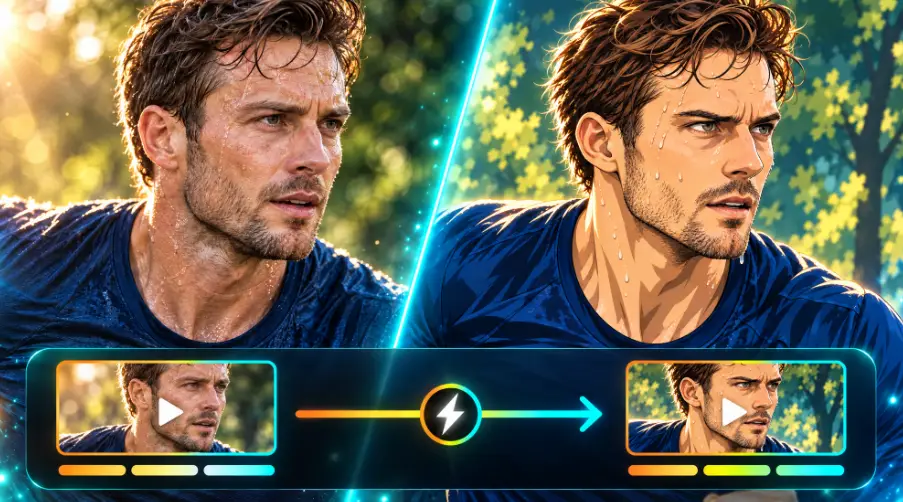
This guide is about turning a photo you already have into anime artwork, not creating a brand-new picture from a text prompt. We’ll go through six tools and what makes each one different: how you choose a style, how much you can edit afterward, and what you can do with the finished image.
What to Look for in an Image to Anime Converter
A few questions make it much easier to choose:
- Does it still look like you? Compare the result with your original. Your face, hairstyle, expression, and accessories should all be easy to recognize. Check the crop at the size you’ll actually use, especially for a small profile icon.
- How do you pick the style? Some tools offer ready-made looks you can click through. Others let you describe the effect yourself. Presets are quick to compare, while your own instructions give you more control. Compare the previews, since anime, manga, and 3D cartoon effects can give you quite different results.
- Can you keep adjusting? If you may want to change the background, the colors, or small details later, look for a tool that lets you.
- Where will the image go? A tiny profile icon has different needs than a large illustration or a character you plan to develop further. Before starting, check the credit cost, download conditions, and export limits.
1. Flova for Custom Anime Looks and Further Character Work
Best for: people who want to create their own anime look, refine it through conversation, and develop the character further.
Flova is an AI platform where you create images and videos by chatting. You’re not limited to a fixed set of anime filters. Describe whatever look you have in mind: soft, hand-painted artwork, retro cel shading, bold manga-inspired linework, playful chibi characters, or a style of your own. Upload your photo and tell Flova Agent which features to keep as it restyles the image. If a detail isn’t right, ask for a targeted change and keep refining the result. Once you’re happy with the design, you can use it as an avatar or a character reference for a bigger project.
Be specific about the look you want. Instead of asking for “an anime version,” describe the linework, the color palette, the lighting, the background, and the mood. With a selfie, it often helps to lock in the character first and tidy up the background and composition in later rounds.
A request might look like this:
Please convert my selfie into an anime-style profile picture. Keep my short hair, round glasses, and green shirt. Go for gentle colors and a bright background, and make sure my face stays easy to read even at icon size.
2. Fotor for Trying Preset Anime Styles
Best for: people who like browsing ready-made looks before they commit.
Fotor suits you if you’d rather choose from examples than write a prompt. The basic flow is simple: upload a photo, pick an anime style, and generate the result.
Try the same selfie in a few styles and compare how each one handles outlines, colors, and the features that make you recognizable. One style might smooth your face too much, while another keeps your glasses and hair intact.
3. insMind for Different Types of Photos
Best for: people who want to try anime conversion on portraits, pets, or scenes.
insMind is handy when you want to go beyond selfies. You upload an image, choose the Anime effect, look over the preview, and download what you like.
Try it on different subjects. A pet portrait, a holiday snapshot, or a photo of your room can all turn into interesting anime artwork. You’ll need to check different details for each subject. With people, look at the face and hair. With pets, check that distinctive markings survived. With scenes, make sure the important objects are still easy to spot.
A closer crop makes it easier to judge a pet’s face or a person’s expression.
4. Media.io for Exploring Anime and Other Illustrated Styles
Best for: people who want to compare several illustrated looks using the same photo.
Media.io’s Photo to Anime tool offers styles including Ghibli-inspired artwork, retro comics, sketches, and 3D cartoons. Upload a photo, choose a filter, and preview the result before downloading.
You can also use the tool in a phone or desktop browser, so you don’t need to install an app to try these styles.
5. MyEdit for Anime Selfies and Profile Pictures
Best for: people who want to turn a selfie into an avatar using preset styles.
MyEdit’s AI Filter focuses on portraits, with styles including anime, 3D cartoon, clay, and pixel art. Upload a clear selfie, choose a look, and generate a styled portrait you can preview and download.
You can browse the available styles without writing a prompt, which makes this a straightforward starting point if you don’t have a detailed art direction in mind. Sign in to use the daily free credits; each generation uses credits, and some premium styles require a subscription.
6. Picsart for Describing a Look and Continuing the Edit
Best for: people who want to describe an anime style and use the finished image in a larger design.
Open Picsart’s AI Playground, upload your photo, and describe how you want it restyled. For an anime portrait, you might ask for clean outlines, soft cel shading, and a simple background while keeping your hairstyle and glasses.
Once you have an image you like, open it in the Picsart Editor to add text, stickers, or other design elements. That gives you a way to turn the portrait into a profile banner or social post. AI generations use credits, with the cost shown before you generate.
Can You Turn the Finished Anime Image Into a Short Film?
If all you need is a profile picture, you can stop here. If you’d like to keep creating, your approved anime character can become a reference for later shots.
Picture a simple scene: your character walks into a café and looks around. Turning that into connected shots takes a storyboard, planned actions, and a sense of how the scene should sound.
Flova is an AI film maker that lets you build a short film around your anime character. Use your finished image as a reference, then work with Flova Agent to plan the storyboard, generate the shots, and add music or narration.
Choose the Way You Like to Work
The right tool depends on how you enjoy creating. If you like browsing presets, pick a tool with preset styles. If you want one specific look, choose one where you can describe it. If you’re thinking bigger, pick a workflow that carries on past the first image.