App Blocker for Kids: Blocking Apps Without Taking the Phone Away
By seven, Oliver has his maths book open and Roblox open beside it, and you don’t have to ask which one’s winning. Tea’s nearly on the table, the homework’s barely begun, and you can feel the same standoff coming round for the third night this week.
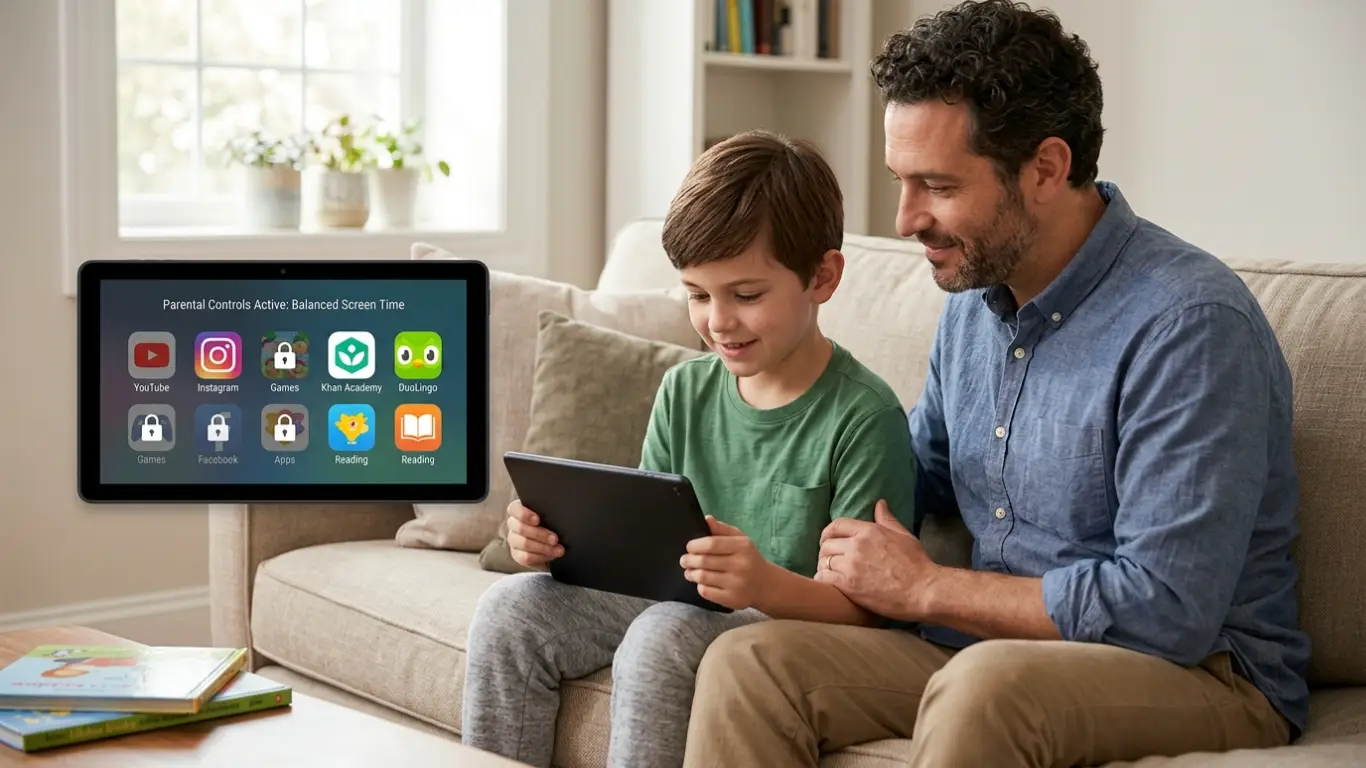
Plenty of parents reach for the words app blocker at exactly this point. Usually it’s one or two apps taking up more of the evening than you’d like, and locking the whole phone away feels like too much for the job. An app blocker simply draws a line around the apps that need one. In Kids360 you can set a single app — Roblox, say — to stay shut while the homework’s happening and open up again once it’s done, with everything else on the phone left alone.
That’s the part worth getting straight before you choose anything: “blocking an app” can mean a few different things, and the genuinely useful ones aren’t the same.
Shutting one app for good
The simplest is a flat no. Some apps you’d just rather your child didn’t open on a school night. You mark those as always blocked, and they stay shut until you decide otherwise — handy for the game that has a way of turning a ten-minute break into an hour.
Blocking by the clock, not the rule book
Most of family life runs on timing rather than outright bans, and this is where schedules earn their keep. You set the hours that matter — lessons from nine, homework after tea, lights out by ten — and the apps you’ve picked go quiet during those windows, on the days you choose. The sleep schedule is the one most parents set up first. From ten at night the games and the social apps are shut, and the phone is a clock and an alarm until morning. No app pinging away under the duvet, no “five more minutes” at half eleven.
Capping the whole day
Then there’s the day’s budget. Rather than managing each app one by one, you give the phone a daily limit — two hours on a weekday, a little more at the weekend. Once that’s used up, the games and the rest of it stay shut for the day, while the things your child still needs, like messages, maps and school apps, keep working. Working out “how long have I got left” stops being a kitchen-table negotiation.
And one small setting that saves a surprising amount of bother: you can stop new apps being installed without your say-so. The blocked game doesn’t quietly reappear under a slightly different name the following week.
Knowing where the time actually goes
None of this has to be guesswork. Kids360 shows you where the time went — how much across the day, and which sorts of apps it went on — so the limits you set match real life instead of a hunch. More often than not it’s a single app doing most of the work, and once you can see that plainly, the fix more or less chooses itself.
If you’ve already tried the controls built into the phone, you’ll know they handle the essentials. Kids360 sits on top and gives you the finer settings — a particular app shut for a particular hour, a sleep window that actually holds, a budget that flexes between weekdays and weekends — and it works whichever phones you and your child happen to have between you.
You don’t need all of it
The nice thing is that you choose the shape of it. A parent of a Year 8 might set nothing more than a sleep schedule and a daily limit and never touch the rest. Someone whose daughter keeps drifting back to one app — Mia and her group chat, say — might block that single app at homework time and leave everything else alone. It bends to your week, not the other way round.
Getting started doesn’t cost anything. The daily limit, a basic schedule and the usage overview are all there for free, on both the App Store and Google Play, and a lot of families run on the free side quite happily for a good while. The finer controls come with the subscription if and when you want them.
If that seven o’clock standoff sounds familiar, it’s worth setting up an app blocker before the next school week starts — five quiet minutes now to spare yourself the same conversation on Monday. Kids360 is on the App Store and Google Play.