
5 Sneaky Ways People Fake Their Location on Find My iPhone (And How to Catch Them)
Trying to spoof location on iPhone is tricky, risky, and rarely foolproof. Apple isn’t exactly handing out “fake your GPS” buttons. Still, some people try – and a few even get away with it. In this post, we’ll walk through 5 real methods people use to fake their location on Find My iPhone, plus how to tell if someone is faking their location on Find My iPhone. Tools like GEOfinder not only expose fake pins but can also help with tricks like how to find someone’s name from a phone number.

5 Methods to Spoof Location on iPhone
Apple’s ecosystem is strict, and one wrong tap could break apps, mess with 911 calls, or get your Find My iPhone completely useless. Still, you can try if you want to trick a partner, parent, or friend. Below are 5 ways people spoof location iPhone style, with their perks and pitfalls.
Desktop Apps Like iTools and 3uTools
This is the go-to trick if someone is determined to fake their location. Apps like iTools (paid) and 3uTools (free) let you plug your iPhone into a computer and create a virtual GPS spot anywhere in the world.
How it works:
- Install the app and connect your iPhone via USB.
- Open the Virtual Location feature.
- Drop a pin anywhere on the map and hit “Move Here”.
- Restart the phone to reset the location.
Benefits: You can appear in Tokyo while sipping coffee in Texas. Some use it for games or avoiding awkward check-ins.
Risks: Apple isn’t thrilled with this. If you forget to reset your real location, every app thinks you’re still in “fake mode”. Plus, iOS updates can break the spoof. And yes – if an emergency happens, 911 may pull the wrong GPS.
The “Backup iPhone at Home” Trick
This one’s straight out of a teenager’s playbook. You leave an old iPhone at home, logged into your Apple ID, and turn on Share My Location from that device. Then, while you’re out, Find My iPhone shows you “chilling” at home.
How it works:
- Grab an old iPhone and connect it to Wi-Fi.
- Go to Settings > Privacy & Security > Location Services > Share My Location.
- Set “This Device” as the active sharing phone.
- Leave it at home and go wherever you want.
Benefits: Zero tech knowledge required. Looks perfectly normal on Family Sharing.
Risks: Anyone tech-savvy can spot this trick fast. The illusion breaks instantly if someone checks your network activity or location via your SIM.
Turning Off Location Sharing Entirely
When all else fails, some people just… disappear. Turning off Share My Location in iCloud or Find My iPhone immediately hides you from the map.
Benefits: Instant privacy. No apps or extra devices.
Risks: It’s the most suspicious method. Anyone tracking you sees “Location Not Available”, which is waving a red flag. It also kills other location-based features like finding a lost phone. And if you’re on a Family Sharing plan, the account organizer can spot the switch.
VPNs and IP-Based Illusions
A few try to spoof location iPhone-style using a VPN, thinking it’s the magic fix. While VPNs change your IP address, they don’t always fool Apple’s GPS. Some apps may think you’re abroad, but Find My iPhone shows the truth.
Benefits: Easy to install and gives some privacy online.
Risks: It rarely works for full GPS spoofing. If someone tries to hide, you can still use tools like GEOfinder to verify their location. Bonus: VPN lag can make your phone seem suspiciously “stuck” in one spot.
Jailbreaking and Advanced Spoofing
This is the riskiest route. Jailbreaking unlocks hidden iOS features and allows advanced GPS spoofing apps.
Benefits: Full control and ability to place your iPhone anywhere on the map without a computer.
Risks: Say goodbye to security. Apple voids your warranty, updates break your setup, and malware risk skyrockets. Plus, if someone is curious about how to tell if someone is faking their location on Find My iPhone, this is often the first method that gets caught because the phone behaves oddly in other apps.
How to Tell If Someone Is Faking Their Location on Find My iPhone
So, you’ve spotted something fishy. Maybe their pin hasn’t moved in hours, or their “home” suddenly looks like a Starbucks parking lot. Wondering how to tell if someone is faking their location on Find My iPhone? There are smart ways to check. From dedicated tools like GEOfinder to cross-checking GPS signals, these tricks can unmask a fake pin in minutes. Below are the top methods to reveal the truth and confirm if someone is trying to spoof location iPhone style.
Use GEOfinder for Instant Location Checks
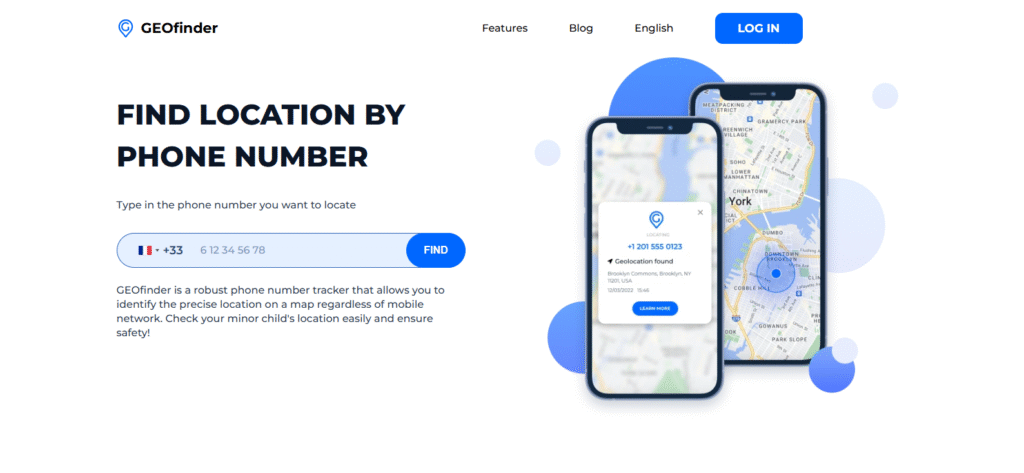
If you need quick, undeniable proof, GEOfinder is the ultimate tool. This online tracker works in stealth mode, letting you confirm someone’s real-time location in just a few clicks. It sends a discreet SMS with a smart tracking link, and once the person taps it, their true position appears in your dashboard – even if they’re trying to spoof location on iPhone or freeze their Find My pin.
How to use it:
- Visit the GEOfinder website.
- Enter the phone number you want to track.
- Customize a message to trigger curiosity.
- Send the link and watch the real location appear on your map.
With GEOfinder, you get a clear, undeniable answer without tech headaches. It’s the easiest way to verify if someone is really where they claim to be.
Key benefits and features:
- Works worldwide, across all mobile networks and phone models.
- 100% web-based – no app downloads or installations needed.
- Shows real-time GPS with precise map coordinates.
- Compatible with iPhone and Android, even with VPN enabled.
- Help with how to find someone’s name from a phone number via lookup features.
- Operates completely anonymously – they never know they’re being checked.
Cross-Check Their Wi-Fi or IP Data
A subtle but effective method is to compare their reported GPS with their IP or Wi-Fi location. If their phone says “New York” but the IP pings from Miami, something’s off.
Benefits: Free and quick if you have access to router logs or their email activity.
Pitfalls: Requires some tech access and only gives approximate city-level accuracy.
Look for Location Inconsistencies
Open the Find My app and watch the movement. Does their pin jump unrealistically or stay frozen for hours? Does the timestamp mismatch their supposed activity? These red flags can expose someone trying to spoof the location iPhone with third-party apps.
Benefits: Easy and built-in.
Pitfalls: Subtle fakes may still look believable unless you combine this with other checks.
Check for Jailbreak or Suspicious Apps
Many advanced how to spoof location on iPhone tricks require jailbreaking. If their phone shows unauthorized apps like “iTools” or “3uTools,” consider that a big clue.
Benefits: Physical confirmation of tampering.
Pitfalls: Requires access to their device, which isn’t always possible.
Final Thoughts
Learning how to spoof location on iPhone might seem clever, but it’s rarely flawless. From desktop tools to backup‑phone tricks, people go to surprising lengths to appear somewhere they’re not. But now you also know how to tell if someone is faking their location on Find My iPhone and which tools expose the truth. A solution like GEOfinder makes it easy to verify real‑time GPS, check movement history, and even assist with how to find someone’s name from a phone number. Whether you’re protecting family or confirming a suspicion, the right tool ensures no fake location stays hidden for long.